
1 min read

If you've started a BYO Battery No Bill quote for your Sigenergy battery, you'll be asked for your System ID. It's what lets us request read-only access to your battery's history so we can work out the right plan for your home. Here's how to find it.
How to Find Your System ID
Your System ID lives in the mySigen app. It only takes a minute:
-
Step 1: Open the mySigen app on your phone.
-
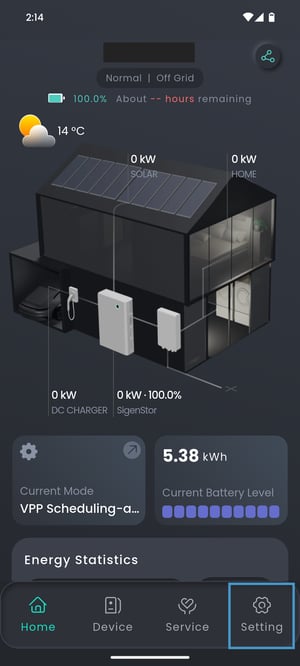
Step 2: Tap Setting in the bottom menu.
-
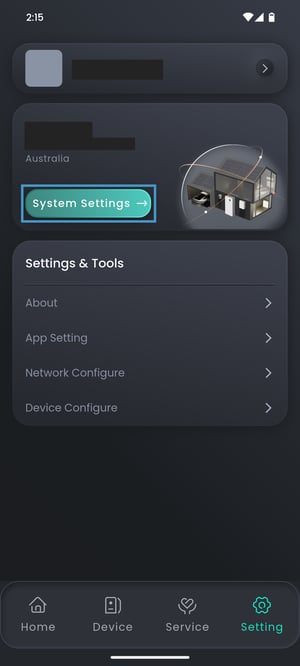
Step 3: Tap System Settings.
-
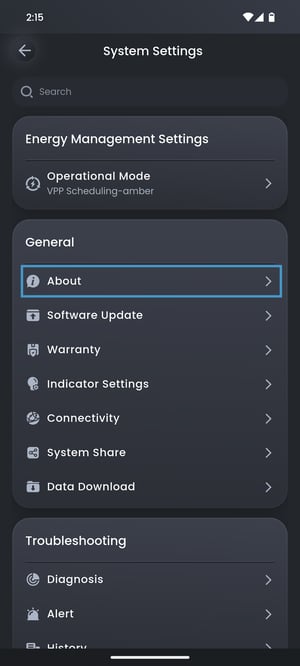
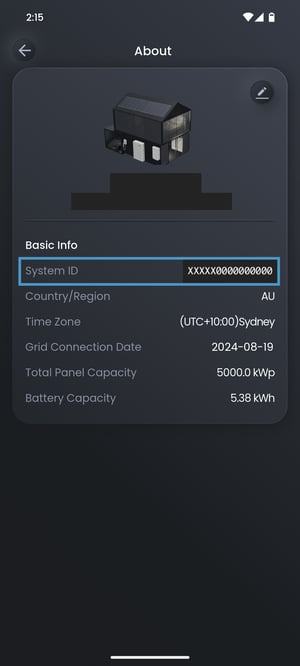
Step 4: Tap About. Your System ID is listed there.
Your Serial Number Is Not Your System ID
This is the most common mix-up, so it's worth a quick check:
-
Serial numbers: Your battery and inverter have serial numbers printed on them, and these also appear in the app. They won't work in our quote form.
-
System ID: This is the number on the About screen in mySigen, under Basic Info. It's the one we need.
What If I Don't Have the mySigen App?
Download the mySigen app and log in with the email you gave your installer. If you've never set a password, look for the email from Sigenergy that lets you set one.
Ready to Continue?
Once you have your System ID, you can pick up your quote where you left off. Still stuck? Call us on 1800 773 851 and we'll walk you through it.